Install Nimble’s Snowflake Native Apps — Search and Agents (Extract Templates) — connect your API key inside Snowflake, and call live web data from SQL.
Nimble ships two Native Apps on the Snowflake Marketplace. Both run inside your account, call live web data from any worksheet, pipeline, or Snowflake Intelligence agent, and read your Nimble API key from a Snowflake Secret you control. They share the same one-time account setup, so connect your key once and use whichever app you install.
Choose your app
Nimble Search
Live web search and AI-synthesized answers. Procedures: NIMBLE_SEARCH, NIMBLE_ANSWER.
Agent
Site-specific extraction with Extract Templates (Amazon, Google, Walmart, Maps, and hundreds more). Procedures: NIMBLE_AGENT_RUN, LIST_AGENTS, DESCRIBE_AGENT.
Both apps install in one click from the Marketplace, ship a guided Streamlit setup screen, and keep your key inside your account — the app reads it from a Snowflake Secret at call time, and only authorized outbound calls reach Nimble.
Prerequisites
ACCOUNTADMIN role (or a role that can create applications, secrets, network rules, and external access integrations)
A warehouse to run statements (any size; XSMALL is fine)
Both apps read your key from a Snowflake Secret and reach Nimble through an External Access Integration. These are account-level objects shared by either app, so create them once. The per-app sections below just bind to them.
1
Store your key as a Secret
Run this in a worksheet, in any database and schema you own (outside the app). Paste your Nimble API key in place of the placeholder.
CREATE DATABASE IF NOT EXISTS nimble_integration;CREATE SCHEMA IF NOT EXISTS nimble_integration.tools;CREATE OR REPLACE SECRET nimble_integration.tools.nimble_api_key TYPE = GENERIC_STRING SECRET_STRING = 'YOUR_NIMBLE_API_KEY';
2
Authorize outbound access to Nimble
Create a network rule and an External Access Integration so an app can reach sdk.nimbleway.com.
CREATE OR REPLACE NETWORK RULE nimble_integration.tools.nimble_api_rule MODE = EGRESS TYPE = HOST_PORT VALUE_LIST = ('sdk.nimbleway.com');CREATE OR REPLACE EXTERNAL ACCESS INTEGRATION nimble_api_access ALLOWED_NETWORK_RULES = (nimble_integration.tools.nimble_api_rule) ALLOWED_AUTHENTICATION_SECRETS = (nimble_integration.tools.nimble_api_key) ENABLED = TRUE;
Nimble Search
Live web search and AI-synthesized answers as stored procedures: ranked web results as a VARIANT, or a single sourced answer string.
The Nimble Search listing on the Snowflake Marketplace
1
Open the listing
In Snowsight, go to Data Products → Marketplace and search for Nimble Search, or open the listing directly.
2
Get the app
Click Get. Choose the database name the app installs into (the default is fine) and the role allowed to use it, then confirm. Snowflake installs the application into your account.
3
Open the setup app
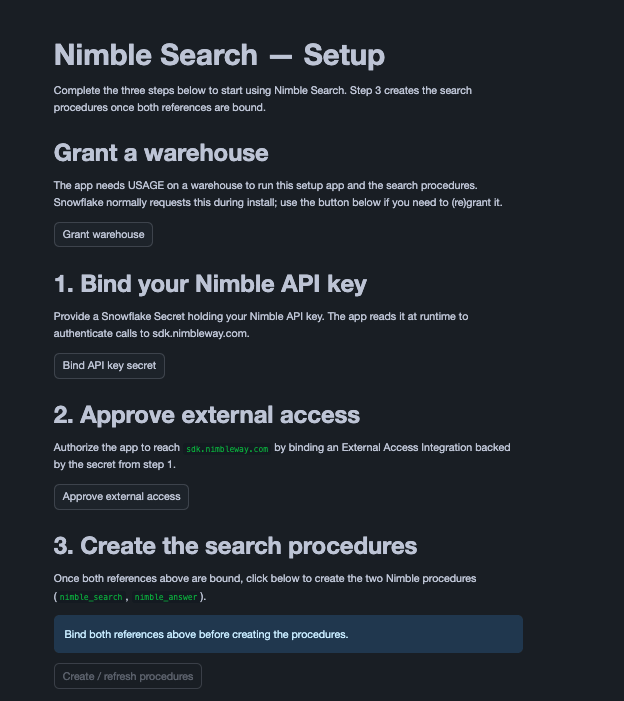
From Data Products → Apps, open Nimble Search. The setup screen lists three steps: connect your API key, approve external access, and create the procedures.
The Nimble Search setup app
Connect the app
The Secret and External Access Integration already exist from Set up account access. Bind both to the app, then create the procedures.
1
Bind both references in the setup app
In the Nimble Search setup app:
Click Bind API key secret and select nimble_integration.tools.nimble_api_key.
Click Approve external access and select nimble_api_access.
Each opens a Snowflake dialog that grants the app scoped access to that one object.
2
Create the procedures
Click Create / refresh procedures. This creates CORE.NIMBLE_SEARCH and CORE.NIMBLE_ANSWER with the references you just bound. When it returns ok, the app is ready.
Prefer SQL over the setup screen? See Set up with SQL below for the equivalent statements.
Run it
Replace nimble_search with the database name you chose at install if it differs.
Get a direct answer
NIMBLE_ANSWER returns a single sourced answer string. It is the right shape for a Snowflake Intelligence agent tool.
CALL nimble_search.core.nimble_answer('what is the capital of France?');
Search the web
NIMBLE_SEARCH returns a VARIANT with results, request_id, and total_results. The arguments are the query, the maximum number of results, and the search depth ('lite' or 'deep').
CALL nimble_search.core.nimble_search('latest AI news', 5, 'lite');
Flatten results into rows
Run the search, then read its output with RESULT_SCAN and FLATTEN to get one row per result.
CALL nimble_search.core.nimble_search('best espresso machine 2026', 5, 'lite');SELECT v.value:title::STRING AS title, v.value:url::STRING AS url, v.value:description::STRING AS description, v.value:metadata:position::INT AS positionFROM TABLE(RESULT_SCAN(LAST_QUERY_ID())), LATERAL FLATTEN(input => $1:results) vORDER BY position;
Use the answer as a Cortex Agent tool
CORE.NIMBLE_ANSWER(VARCHAR) returns a single STRING, so it registers cleanly as a Cortex Agent tool. In Snowsight, go to AI & ML → Agents → your agent → Tools → Add tool and point it at nimble_search.core.nimble_answer. The agent can then pull live web context into its answers.
Set up with SQL
The setup screen is the fastest path, but every step has a SQL equivalent. After setting up account access, bind the references and create the procedures directly.
Both register_reference calls return ok, and create_eai_objects returns ok once the procedures exist.
Nimble Agents
Run Extract Templates — site-specific extraction for Amazon, Google, Walmart, Maps, social platforms, and hundreds of community templates — directly from SQL. The app also exposes template discovery in-warehouse, so you can find templates and inspect their inputs without leaving Snowflake. Despite the app and procedure names (NIMBLE_AGENT_RUN, LIST_AGENTS, DESCRIBE_AGENT), they operate on Extract Templates, not Nimble Agents.
In Snowsight, go to Data Products → Marketplace and search for Nimble Agents, or open the listing directly. Click Get.
2
Grant a warehouse
On the app’s page, grant it USAGE on a warehouse when prompted (or from the setup app). The app needs compute to run its setup screen and procedures.
3
Open the setup app
From Data Products → Apps, open Nimble Agents. The setup screen covers connecting your API key, approving external access, and creating the procedures.
Connect the app
The Secret and External Access Integration already exist from Set up account access. Bind them to the app in order, then create the procedures.
1
Bind the references in order
In the Nimble Agents setup app:
Click Bind API key secret and select nimble_integration.tools.nimble_api_key.
Then click Approve external access (enabled only after the key is bound, so the integration is wired to your secret).
2
Create the procedures
Click Create / refresh procedures. When it returns ok, the app is ready.
Discover templates
The Extract Template catalog is large, so the app exposes discovery directly in SQL — no hunting through docs. Replace nimble_agents with the database name you chose at install if it differs.
-- Search the catalog (keyword, domain, or vertical)CALL nimble_agents.core.list_agents('amazon');-- Flatten the matches into rowsSELECT a.value:name::STRING AS agent, a.value:display_name::STRING AS title, a.value:vertical::STRING AS vertical, a.value:description::STRING AS descriptionFROM TABLE(RESULT_SCAN(LAST_QUERY_ID())), LATERAL FLATTEN(input => $1) a;-- Inspect one template's inputs before calling itCALL nimble_agents.core.describe_agent('amazon_best_sellers');-- returns input_properties (name, type, required, examples) + output_schema
The setup app’s Explore agents section does the same visually, and links to the Extract Template Gallery.
Run a template
NIMBLE_AGENT_RUN returns a VARIANT with status, task_id, url, and a data payload. There are two forms — short (agent, params) and full (with optional country, locale).
-- Short formCALL nimble_agents.core.nimble_agent_run( 'amazon_best_sellers', OBJECT_CONSTRUCT('category', 'appliances'));-- Full form, with localizationCALL nimble_agents.core.nimble_agent_run( 'google_search', OBJECT_CONSTRUCT('query', 'best espresso machine 2026'), 'us', 'en-US');-- Read the parsed payloadSELECT $1:status::STRING AS status, $1:data:parsing AS parsedFROM TABLE(RESULT_SCAN(LAST_QUERY_ID()));
agent is the Extract Template identifier from list_agents (e.g. google_search, amazon_pdp). params is the template-specific input object — use describe_agent to see exactly what each template expects.
Handle errors
Every procedure returns a VARIANT. On failure — an unknown template, a missing required parameter, or a transient upstream error — the procedure returns a structured error object instead of raising, so you can branch on it in SQL.
CALL nimble_agents.core.describe_agent('does_not_exist');SELECT $1:status::STRING AS status, -- 'error' when the call failed $1:error:code::STRING AS code, -- e.g. not_found, invalid_input $1:error:message::STRING AS messageFROM TABLE(RESULT_SCAN(LAST_QUERY_ID()));
list_agents, describe_agent, and nimble_agent_run register cleanly as Cortex Agent tools, so a Snowflake Intelligence chat can discover the right Extract Template and run it without the user knowing template names. Wire them in AI & ML → Agents, pointing each tool at the matching core procedure.
Uninstall
Drop whichever app you installed. Replace the database names if you changed them at install.
DROP APPLICATION nimble_search CASCADE;DROP APPLICATION nimble_agents CASCADE;
The Secret, network rule, and External Access Integration you created are not owned by either app and remain in your account.
Resources
Nimble Search API
Request shape, parameters, and response schema behind NIMBLE_SEARCH
Extract Template
Template identifiers, parameters, and execution models behind NIMBLE_AGENT_RUN
Extract Template Gallery
Browse every pre-built and community template
Cortex Agents on Snowflake
Wire Nimble tools into a Cortex Agent for Snowflake Intelligence
Snowflake Native Apps
How Snowflake installs and runs apps inside a consumer account
Snowflake External Access Integration
How Snowflake gates outbound HTTPS from app procedures
Was this page helpful?
Assistant
Responses are generated using AI and may contain mistakes.